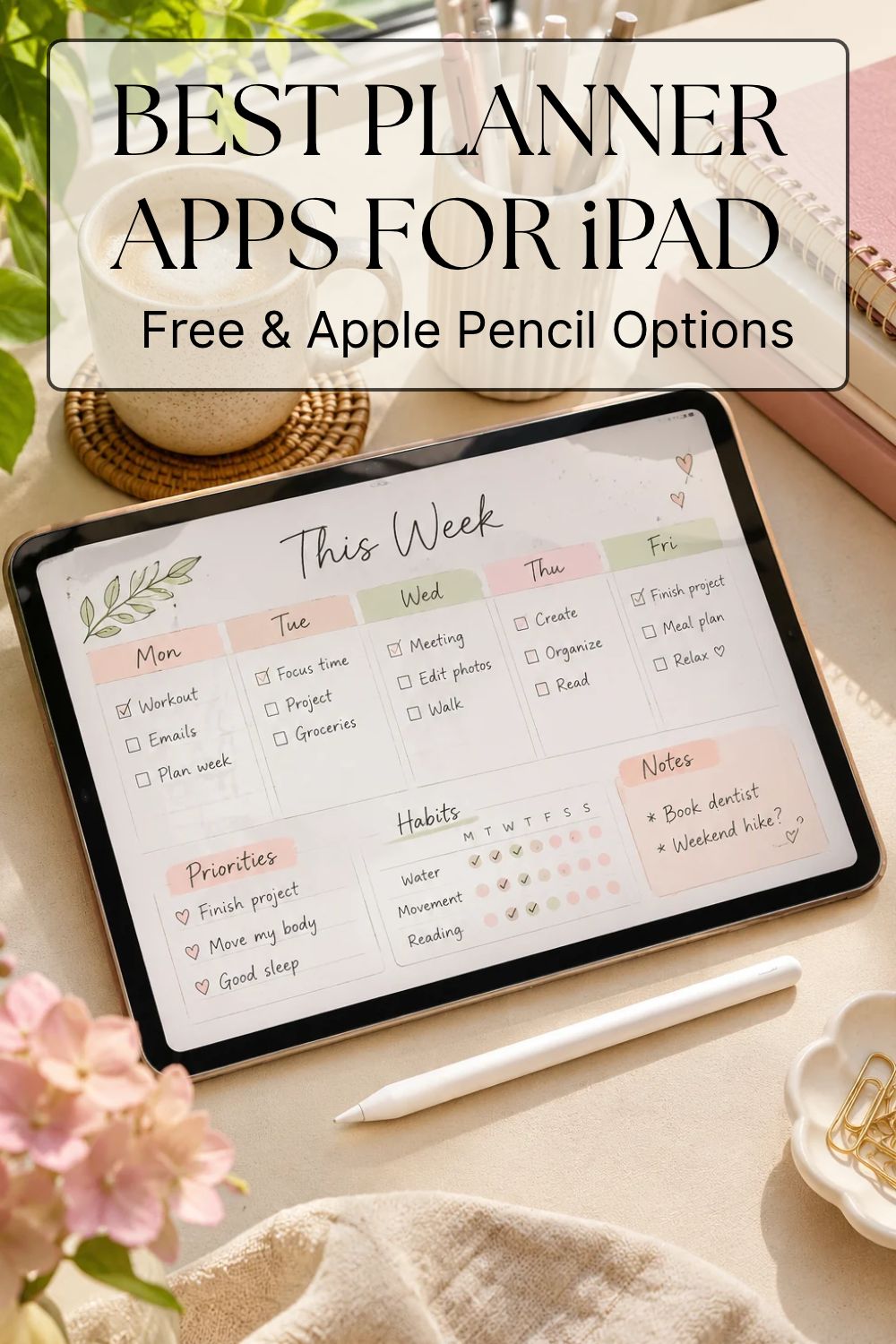
10 Best Planner Apps for iPad in 2026 (Free & Apple Pencil Options)
Looking for the best planner app for iPad to organize your life, plan your week, or finally make use of that Apple Pencil?
There are so many digital planners to choose from, and honestly, finding the right one can feel like a project in itself.
Some apps let you write in beautiful digital notebooks, decorate pages with stickers, and recreate the feeling of a paper planner. Others offer smart reminders, visual timelines, calendar integrations, and automatically repeating tasks.
But which one is actually worth using?
I’ve always loved the idea of having a beautiful planning system. I’ve experimented with paper planners, bullet journals, digital planning, visual progress trackers, and all kinds of creative organization methods.
And one thing I’ve learned is that a planner needs to be both beautiful enough to make me want to use it and practical enough to work on an ordinary day.
That’s why this guide looks beyond pretty screenshots.
We’ll compare 10 of the best iPad planner apps for 2026, including free options, Apple Pencil planners, daily organizers, and apps that may be particularly useful if you prefer ADHD-friendly, low-pressure planning.
Note: This is a research-based comparison, not a claim that I’ve personally tested every app. Features, compatibility, prices, and subscriptions may change. Information reviewed November 2026.
Best Planner Apps for iPad: Quick Comparison
If you don’t want to read the entire guide, start with this overview.
| App | Best for | Apple Pencil | Free option |
|---|---|---|---|
| Goodnotes | Handwritten digital planners | Yes | Limited free plan |
| Notability | Handwriting and study notes | Yes | Limited free plan |
| Structured | Visual daily planning | Not handwriting-focused | Yes |
| Apple Notes | Simple handwritten planning | Yes | Yes |
| Apple Reminders | Tasks and reminders | Scribble input | Yes |
| TickTick | Tasks, habits and calendars | Not handwriting-focused | Yes |
| Notion | Custom planning dashboards | Not a handwriting planner | Yes |
| Zinnia | Decorative digital journals | Designed for stylus-friendly planning | Limited access |
| Google Calendar | Appointments and time blocking | Not handwriting-focused | Yes |
| Microsoft OneNote | Digital notebooks | Yes | Yes |
My quick recommendations:
- Best for handwritten planning: Goodnotes
- Best for visual daily planning: Structured
- Best completely free starting point: Apple Notes + Apple Reminders
- Best for task and habit management: TickTick
- Best for customizable planners: Notion
- Best for creative journaling: Zinnia
- Best for managing appointments: Google Calendar
The best option depends on how you naturally prefer to plan.
If you’re looking for a planner specifically suited to ADHD-related challenges, take a look at my Best ADHD Planner Apps for Adults comparison. It focuses on planning tools that may help with everyday organization, routines, and overwhelm.
1. Goodnotes — Best iPad Planner App for Apple Pencil
Best for: Handwritten planners, digital notebooks, PDF planner templates
Free option: Yes, with file and import limits
Website: https://www.goodnotes.com/
Goodnotes is one of the first apps worth considering if you love the idea of replacing a traditional paper planner with your iPad.
It allows you to write by hand, annotate documents, organize notebooks, and import digital PDF planners.
Why choose Goodnotes?
The biggest appeal is how closely it can recreate the traditional planner experience.
You can use handwritten daily schedules, weekly layouts, habit trackers, decorative elements, and digital notebooks.
Many digital planners sold on Etsy are designed to work with PDF annotation apps such as Goodnotes.
That means you can purchase or create a planner layout you genuinely love instead of being limited to the app’s default interface.
Is Goodnotes free?
Goodnotes has a permanent free plan, but there are limitations.
As of November 2026, the free plan allows a limited number of files, restricts imports to 5 MB, and applies watermarks to exports. The paid plans remove major limitations and provide additional functionality.
Potential downsides
Goodnotes is excellent for handwritten planning, but a PDF planner doesn’t automatically behave like a smart calendar.
Writing “dentist appointment at 3 PM” on a digital page isn’t the same as creating a calendar event with an automatic notification.
Best choice if: You love paper planners, bullet journaling, handwriting, and creative digital stationery.
2. Notability — Best for Students Who Want Notes and Planning Together
Best for: Handwritten notes, planning, lectures and meetings
Free option: Yes, with restrictions
Website: https://notability.com/
Notability is another well-known iPad app for Apple Pencil users.
Although it’s primarily a note-taking application, it can also be used for digital planning.
What makes Notability useful?
You can combine handwritten notes, documents, and PDF annotation in one place.
If you’re a student, this can be particularly convenient because your study notes and planning documents can live within the same application.
Notability also offers audio-related note-taking features, although availability and limits depend on your subscription.
Is Notability free?
Notability offers a free Starter tier with restrictions. Paid subscriptions unlock additional capacity and advanced features.
Potential downsides
Notability is more of a digital notebook than a dedicated calendar or task planner.
If you mainly need automatic reminders and scheduling, another app may be more suitable.
Best choice if: You want to combine handwriting, lectures, notes, and planner pages on your iPad.
3. Structured — Best Visual Daily Planner for iPad
Best for: Daily timelines, time blocking, routines, visual scheduling
Free option: Yes
Website: https://structured.app/
Structured is one of the most interesting alternatives to traditional handwritten planners.
Instead of giving you a blank page, it organizes your day into a visual timeline.
You can see what you plan to do and how different activities fit into your schedule.
Why it stands out
A typical to-do list shows tasks without necessarily explaining where they fit in your day.
Structured makes time more visible.
For example, you might plan:
- 9:00 AM — Morning routine
- 10:00 AM — Focused work
- 12:00 PM — Lunch break
- 1:00 PM — Emails and admin
- 3:00 PM — Walk or recharge
This style can be especially useful if you’re more motivated by visual structure than long checklists.
Is Structured free?
Yes. Structured offers a free version for everyday planning.
Advanced features, including external calendar imports and some AI-powered planning tools, require Structured Pro.
Potential downsides
Structured isn’t designed to replace a creative handwritten journal.
If you want to decorate every page with stickers and custom layouts, Goodnotes may be more enjoyable.
Best choice if: You want a clear, visual daily schedule without creating complicated planner pages.
If you enjoy visual daily planners, Tiimo is another option worth exploring. In my personal Tiimo App Review, I explain what initially appealed to me about the app and why I eventually stopped using it.
4. Apple Notes — Best Free iPad Planner for Handwriting
Best for: Simple planning, notes, handwritten lists, brain dumps
Free option: Yes, included with iPadOS
Website: https://www.apple.com/ipados/
Sometimes the best free planner app is already installed on your iPad.
Apple Notes supports handwritten notes, checklists, sketches, document annotation, and Apple Pencil.
How to use Apple Notes as a planner
You can create separate notes for:
- Weekly priorities
- Daily to-do lists
- Monthly goals
- Shopping lists
- Meal planning
- Personal projects
- Brain dumps
You can also annotate PDFs, making it possible to use a simple planner template without immediately purchasing a premium note-taking app.
Why I like the simplicity
One of the biggest challenges with digital organization is turning planning into another complicated activity.
Apple Notes removes much of that friction.
You can open it, write something down, and move on.
Potential downsides
Apple Notes doesn’t offer the same dedicated planner experience as Goodnotes or Structured.
It is best for lightweight, flexible planning rather than advanced calendar management.
Best choice if: You want a free handwritten planning experience without downloading another app.
Prefer planning on a bigger screen? Take a look at my best planner apps for iPad guide, featuring digital planning options for visual thinkers, Apple Pencil users, and anyone who enjoys keeping their schedule in one place.
5. Apple Reminders — Best Free iPad App for Everyday Tasks
Best for: To-do lists, recurring responsibilities, reminders
Free option: Yes
Website: https://www.apple.com/
Apple Reminders is another built-in tool that’s easy to overlook.
It isn’t a decorative digital planner, but it can be one of the most practical ways to manage everyday responsibilities.
What can you do with it?
Apple Reminders supports task lists, scheduled reminders, recurring tasks, grocery lists, and shared lists.
You can also use Apple Pencil with Scribble to enter text on supported devices.
A simple planning setup
Try creating three lists:
Today: The tasks you want to complete.
This Week: Important responsibilities that don’t need immediate attention.
Later: Ideas and tasks you don’t want to forget.
You can keep things relatively simple instead of creating dozens of categories.
Potential downsides
It’s primarily a task management tool, not a notebook.
For handwritten journaling or creative weekly spreads, you’ll need another app.
Best choice if: You want reliable reminders and simple planning without paying a subscription.
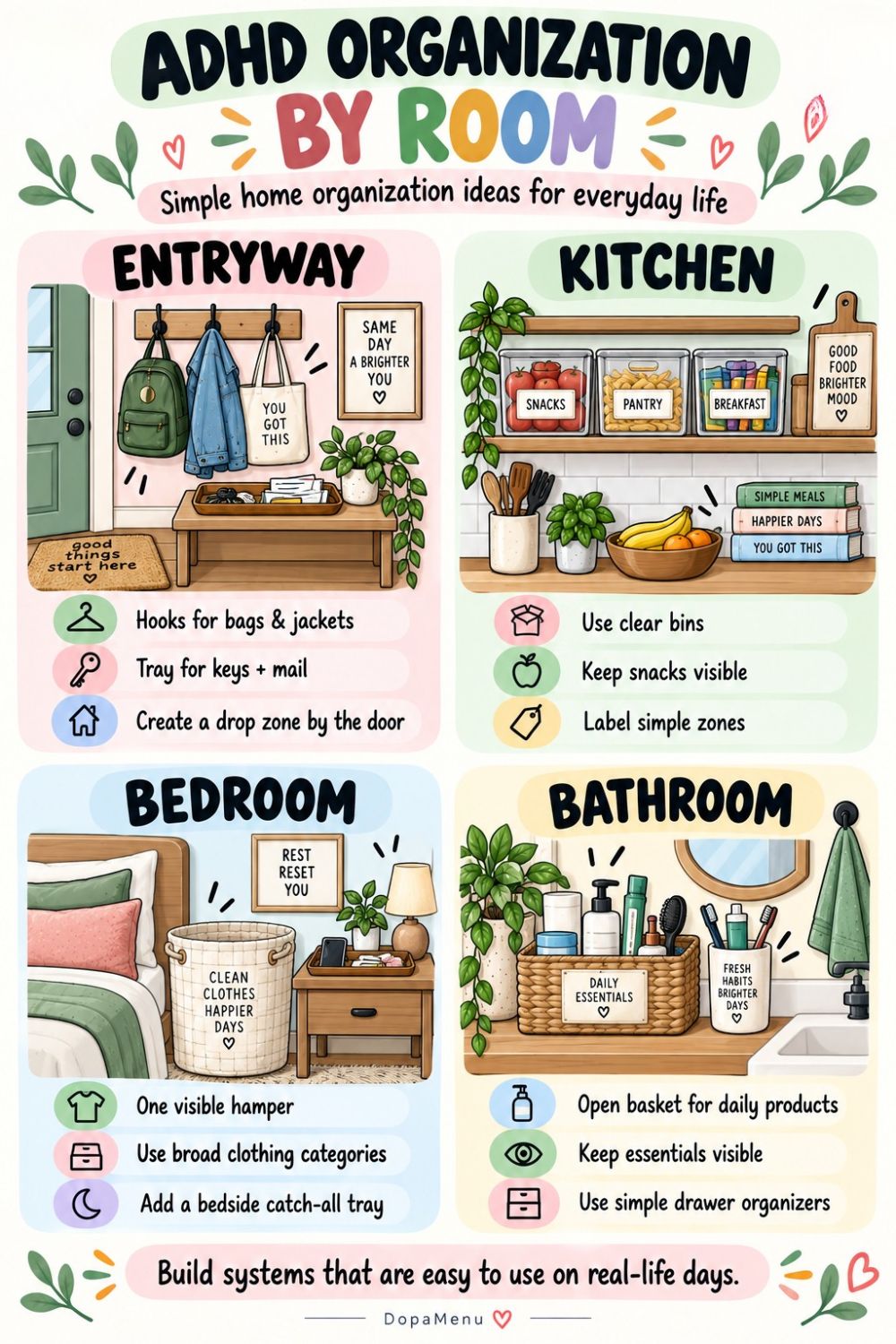
Before building a complicated digital planning system, it helps to understand what makes an organization method sustainable. My guide to ADHD Organization explores how to create systems that are easier to maintain in everyday life.
6. TickTick — Best iPad Planner for Tasks, Habits and Focus
Best for: Task management, habit tracking, reminders, productivity
Free option: Yes, with limits
Website: https://ticktick.com/
TickTick combines several planning features within one application.
Instead of switching between a to-do list, habit tracker, and focus timer, you can manage many of these activities in one place.
Useful features
- Task lists and subtasks
- Recurring responsibilities
- Task reminders
- Basic calendar functionality
- Habit tracking
- Focus and productivity tools
Why it may be useful
If you want more structure than Apple Reminders provides, TickTick offers additional ways to organize your responsibilities.
For example, you could manage work tasks, recurring household chores, and personal habits within one system.
Is TickTick free?
TickTick offers a free plan that includes up to nine lists and 99 tasks per list.
Premium unlocks greater capacity, advanced calendar options, and other features.
Potential downsides
Because TickTick offers many tools, its interface may feel more complicated than a minimalist planner.
Start with basic task lists before adding additional features.
Best choice if: You want a practical all-in-one productivity planner rather than a handwritten digital notebook.
7. Notion — Best Customizable Digital Planner for iPad
Best for: Custom dashboards, project planning, content calendars, personal organization
Free option: Yes
Website: https://www.notion.com/
Notion is a flexible workspace that can be turned into almost any kind of planning system.
You can create pages, databases, calendars, checklists, and project dashboards.
What makes Notion different?
Instead of following a predefined planning structure, you can build one that matches your needs.
For example, a personal dashboard might contain:
- Daily priorities
- Weekly goals
- Habit tracking
- A content calendar
- Reading lists
- Project boards
- Personal notes
You can also use ready-made templates.
Is Notion free?
Notion offers a free plan for individual use, with limitations on features such as file uploads and collaborative workspaces.
Potential downsides
Notion has a learning curve.
It’s easy to spend hours customizing the perfect dashboard instead of using it.
It also isn’t a dedicated Apple Pencil handwriting app.
Best choice if: You enjoy customizing systems and need to manage multiple projects or areas of your life.
8. Zinnia — Best for Creative Digital Planning and Journaling
Best for: Decorative planners, visual journaling, creative organization
Free option: Limited; check current in-app subscription terms
Website: https://www.zinnia.app/
Zinnia focuses on the creative side of digital planning.
If your favorite part of bullet journaling is choosing colors, arranging stickers, and designing beautiful pages, this type of app may be particularly appealing.
Why consider Zinnia?
It combines elements of digital journals, planner layouts, and creative design.
You can personalize your planning pages and experiment with different visual styles.
What makes it different?
Traditional productivity apps often prioritize speed and efficiency.
Zinnia leans into the enjoyable, creative experience of planning.
For people who feel more motivated by visually attractive systems, that can be an advantage.
Potential downsides
Decorative planning can become time-consuming.
The available free content and premium access may change, so check the App Store before committing to a subscription.
Best choice if: Planning is also a creative hobby and you love decorative digital stationery.
9. Google Calendar — Best Free Calendar Planner for iPad and iPhone
Best for: Appointments, time blocking, scheduling, shared calendars
Free option: Yes for personal use
Website: https://calendar.google.com/
If your main goal is remembering appointments and managing your time, a digital calendar may be more useful than a notebook-style planner.
Google Calendar allows you to organize events, view schedules, set notifications, and manage multiple calendars.
How to use it for daily planning
You could create different calendars for:
- Work
- Personal appointments
- Exercise
- Family activities
- Important deadlines
Using different colors can make your schedule easier to scan.
Why it’s useful on iPad
Google Calendar syncs across devices, allowing you to check your schedule on an iPad, phone, or computer.
This makes it practical for people who regularly switch between devices.
Potential downsides
Google Calendar isn’t designed for decorative handwriting or traditional bullet journaling.
It also doesn’t replace a detailed project manager.
Best choice if: You want a reliable free calendar that works across your devices.
10. Microsoft OneNote — Best Free Digital Notebook for Planning Projects
Best for: Flexible notebooks, handwritten planning, research and projects
Free option: Yes, with storage and account considerations
Website: https://www.onenote.com/
Microsoft OneNote offers a flexible digital notebook system.
You can create notebooks, sections, and pages to organize different areas of your life.
Why it may work as a planner
OneNote is particularly useful if your planning involves more than daily tasks.
For example, you could create a notebook for a personal project containing:
- Goals
- Meeting notes
- Research
- Checklists
- Handwritten ideas
- Reference materials
Apple Pencil support
OneNote supports drawing and handwriting on compatible iPads.
That gives it an advantage over planning tools designed mainly for typing.
Potential downsides
Its interface is designed more for note organization than for beautiful daily planner layouts.
If you want a polished visual calendar, Structured may be a better fit.
Best choice if: You want a flexible digital notebook that combines handwritten and typed planning.
Best Free Planner Apps for iPad
If you don’t want another monthly subscription, there are several useful options.
| App | Free access | Main limitation |
|---|---|---|
| Apple Notes | Free built-in app | No dedicated planner interface |
| Apple Reminders | Free built-in app | Limited creative planning |
| Google Calendar | Free personal calendar | No handwritten planning |
| Microsoft OneNote | Free core features | Not a dedicated daily planner |
| Structured | Free basic planning | Advanced features need Pro |
| TickTick | Free task management | Limits on lists and advanced tools |
| Notion | Free personal workspace | Customization takes time |
| Goodnotes | Free limited plan | File, import and export restrictions |
| Notability | Free Starter plan | Usage and feature restrictions |
For a completely free starting setup, I’d choose Apple Notes for handwritten ideas, Apple Reminders for tasks, and a calendar for appointments.
This combination can cover many everyday planning needs without an additional subscription.
Not sure you need a dedicated iPad planner? You might find a simpler alternative in my comparison of the Best Free ADHD Apps for Adults, including task managers, visual planning tools, and focus timers.
Best Planner App for iPad With Apple Pencil
If you specifically want to write by hand, your options are different from those of someone looking for a traditional calendar app.
Here are the strongest candidates.
Goodnotes
Ideal for digital planner PDFs, handwritten pages, and creative notebook-style organization.
Notability
A good option if you want to combine handwriting, study notes, documents, and planning pages.
Apple Notes
A convenient free option for handwritten lists, notes, and simple planning.
Microsoft OneNote
Useful when handwriting is part of a larger project or notebook organization system.
Zinnia
Worth considering for creative journaling and decorative planning.
Important: Apple Pencil compatibility doesn’t automatically mean an app works with hyperlinked PDF planners.
If you plan to buy a digital planner template, check that the seller explicitly supports your chosen application.
Handwritten Digital Planner vs. Smart Planner App: Which Is Better?
This is one of the most important decisions when choosing an iPad planner.
| Feature | Handwritten PDF planner | Smart planner app |
|---|---|---|
| Writing with Apple Pencil | Excellent | Usually limited |
| Custom decorative layouts | Excellent | Varies |
| Automatic reminders | Usually not included | Common |
| Recurring tasks | Usually manual | Often available |
| Calendar synchronization | Limited or manual | Often supported |
| Creative journaling | Excellent | Depends on app |
| Low-maintenance scheduling | Requires manual updates | Often easier |
A handwritten planner can be wonderful if you enjoy the process of writing and reflecting.
A smart planner may be better if your main challenge is remembering appointments, tracking deadlines, or managing repeating responsibilities.
And there’s no reason you can’t combine both.
If you still love the feeling of traditional paper planning, you can also explore my guide to the Best ADHD Planners on Amazon, featuring physical planners designed to make everyday organization feel more approachable.
Best iPad Planner App for ADHD-Friendly Planning
A planning system doesn’t need to be specifically marketed for ADHD to be useful.
What matters is whether it reduces the friction between knowing what you need to do and actually getting started.
Here are some features worth looking for.
Visual timelines
Apps like Structured can help make your day easier to visualize.
Simple task capture
Apple Reminders and TickTick can help you collect tasks without relying entirely on memory.
Handwritten brain dumps
Apple Notes, Goodnotes, and OneNote can give you a flexible space to write down thoughts.
Minimal setup
A built-in app can sometimes be more practical than a complicated planning dashboard.
Pleasant visual design
For some people, aesthetics genuinely affect how appealing a planning tool feels.
But the real question is whether that visual appeal helps you use the planner consistently.
My advice: Don’t choose the app with the most features. Choose the one with the fewest obstacles between you and actually using it.
Best Planner App for iPad Pro, iPad Air and iPad Mini
You don’t necessarily need an iPad Pro to enjoy digital planning.
Many planner apps work on a range of compatible iPad models, although features and operating system requirements differ.
iPad Pro
The larger display options can be especially comfortable for handwritten planning, multitasking, and detailed notebook layouts.
iPad Air
A good middle ground for digital notebooks, calendars, and handwriting, depending on the model and compatible Apple Pencil.
iPad Mini
The smaller screen is convenient for portable lists, quick notes, and checking your daily schedule.
However, detailed full-page digital planners may require more zooming and scrolling.
Before choosing an app, check its current App Store compatibility requirements for your specific iPad and iPadOS version.
How to Create a Simple Digital Planner on Your iPad
You don’t need an elaborate digital planner to get started.
Here’s a basic setup you can create in less than 15 minutes.
Step 1: Choose your planning style
Decide whether you prefer handwriting, typing, or visual time blocking.
Step 2: Create three planning sections
Start with:
- Monthly overview
- Weekly priorities
- Daily tasks
Step 3: Keep your daily list short
Rather than creating a list of everything you could possibly do, focus on the tasks that genuinely need your attention.
Step 4: Add reminders where needed
If remembering something is important, use an actual notification rather than relying solely on a handwritten note.
Step 5: Make it enjoyable
Choose colors, layouts, or small decorative elements that make you want to open your planner.
You don’t need to spend hours decorating. A little personalization can be enough.
Step 6: Review after one week
Ask yourself:
- Did I actually use the planner?
- Was it easy to find what I needed?
- Did it help me remember important tasks?
- Was it enjoyable without becoming distracting?
- Would I use it on a low-energy day?
If something doesn’t work, simplify it.
You don’t have to start over with an entirely new system.
Frequently Asked Questions
What is the best planner app for iPad?
Goodnotes is a strong choice for handwritten digital planning, while Structured is particularly useful for visual daily scheduling. TickTick works well for task management, and Apple Notes is a practical free option.
What is the best free planner app for iPad?
Apple Notes, Apple Reminders, and Google Calendar are useful free options. Structured, TickTick, Goodnotes, and Notion also offer free versions with different limitations.
What is the best planner app for iPad with Apple Pencil?
Goodnotes is a popular option for handwritten digital planners. Notability, Apple Notes, and OneNote also support handwriting on compatible iPads.
Can I use a digital planner on my iPad for free?
Yes. You can create planning pages in Apple Notes or use a free calendar and reminder app. Some PDF planning apps also offer limited free plans.
Do digital planners work with Apple Pencil?
Many do, especially notebook-style apps such as Goodnotes and Notability. However, not every planner app is designed for handwriting.
Is Goodnotes or Notability better for planning?
Goodnotes is worth considering for traditional digital planner PDFs and handwritten organization. Notability is particularly appealing if you also need handwritten study or meeting notes. Both have free tiers with limitations.
Is Notion good for planning on iPad?
Yes, particularly if you enjoy custom dashboards, databases, and project organization. However, Notion isn’t a dedicated handwriting planner and may require more initial setup.
Do I need to buy an iPad planner template?
No. You can use built-in planning apps or create your own notebook-style layouts. Paid digital planner templates are optional and mainly useful if you want pre-designed pages.
What is the best daily planner app for iPad?
Structured is particularly useful for visual daily planning. Apple Reminders and TickTick are good alternatives if you prefer task lists and automatic reminders.
Can I use the same planner on iPad and iPhone?
Many apps support multiple Apple devices, including Structured, Goodnotes, Google Calendar, and Apple Reminders. However, synchronization features and subscription requirements vary between apps and plans.
Final Thoughts: Choose a Planner That Makes Life Easier
There isn’t one perfect planner app for every iPad user.
Some people love the familiar feeling of handwriting in a digital notebook.
Others prefer a calendar that automatically reminds them about appointments.
And some of us want a planning system that’s practical, beautiful, flexible, and enjoyable to use.
The most important thing is to choose an app that fits your actual daily life rather than the perfectly organized version of your life you imagine when setting it up.
Start with one.
Try it for a week.
Keep what works, simplify what doesn’t, and remember that your planning system is supposed to help you — not become another demanding project.
Your planner doesn’t need to be perfect to be useful. It just needs to make your next step a little easier.
Save this guide for later and explore the iPad planning apps that match your personal planning style.